How to Choose Your First Content-Creation Laptop

The laptop sits at the center of every creator workflow. Raw footage lands on it, audio gets mixed on it, thumbnails get designed on it, and the final export that runs for thirty minutes is waiting on it. Before spending money on a better camera or a proper microphone, make sure the machine driving the whole operation can actually keep up. Read the content creator starter kit to understand where a laptop fits into the broader setup — then come back here to make the right purchase.
This guide covers the specifications that genuinely determine editing performance, the jargon decoded in plain language, honest budget tiers, and the mistakes that cost new creators the most money. Building out a camera or audio rig at the same time? The camera buying guide and the microphone buying guide are worth reading alongside this one.
What actually matters when buying your first content-creation laptop
Laptop marketing is aimed at gamers and students, so spec sheets are crowded with numbers that sound impressive but have little bearing on editing performance. The specifications that genuinely determine how a laptop handles video editing are the processor, RAM, GPU, storage, and display.
CPU and RAM (start at 16 GB)
The processor is the primary bottleneck in video editing. Editing software uses every available core for rendering, timeline scrubbing, and export — more cores and higher sustained clock speeds translate directly into shorter wait times. For 1080p editing, a modern eight-core mobile processor is a reasonable floor. For 4K work with color grading and effects, twelve or more cores produces a noticeably more responsive timeline.
RAM is equally important and more often misunderstood. When RAM fills up the software begins paging to storage — and even a fast SSD is orders of magnitude slower than memory. Sixteen gigabytes is the minimum for comfortable 1080p editing. For 4K, or for setups where a browser, communication tools, and the editor run simultaneously, 32 GB is the threshold where the constraints effectively disappear. Many budget laptops ship with 8 GB and cannot be upgraded: confirm both the RAM amount and whether it is soldered to the board before buying.
GPU: do you actually need one?
Integrated graphics — the GPU built into the processor — can handle basic 1080p editing on most current laptops. Modern integrated silicon in Apple Silicon and recent Intel and AMD mobile chips includes a hardware media engine that accelerates H.264 and H.265 encoding without loading the CPU cores. For a creator cutting straightforward 1080p footage, that is often sufficient.
A discrete GPU earns its cost when you are editing 4K footage on a complex timeline, working with motion graphics or 3D elements, or running GPU-accelerated effects in DaVinci Resolve or After Effects. Dedicated GPUs also support NVENC (NVIDIA), QuickSync (Intel Arc), or AMF (AMD) hardware encoding, which can cut export times by more than half compared to software encoding. If your workflow stays at 1080p with light effects, integrated graphics saves money and extends battery life. If you are editing 4K with a demanding timeline, the discrete GPU is worth the premium.
Storage: SSD size and speed
Raw video is large. An hour of 4K footage can occupy 50 to 100 gigabytes depending on the codec. A 512 GB NVMe SSD is the practical minimum — enough for the operating system, editing software, and a project or two before moving finished footage to external storage. A 1 TB drive is more comfortable if you shoot 4K regularly. The type of storage matters as much as the size: a spinning hard drive is too slow for multi-stream video playback and causes constant timeline stutter. Some budget laptops pair a small SSD with a large HDD and default to the HDD as the main volume — avoid any spinning drive for your working files.
Display: resolution and color accuracy
A laptop display is also your editing reference. Resolution matters for timeline legibility — 1440p or higher gives a multi-track timeline room to breathe — but color accuracy matters more. A display covering at least 100% sRGB reproduces colors as your viewers see them, so exported video looks as expected. DCI-P3 coverage is a useful bonus for streaming and cinema work. Aim for 400 nits or above for a desk in typical office lighting; panels below 300 nits wash out in ambient light. A well-calibrated 1080p panel at 100% sRGB is a better editing tool than a high-resolution screen covering only 65% sRGB.
Laptop jargon, decoded
Spec sheets combine consumer marketing language with engineering terminology in ways that obscure what the numbers actually mean. Here are the terms you will encounter most often, explained plainly:
- CPU cores and threads: A core is a physical processing unit; a thread is a virtual one. Editing software uses all available threads for rendering — more threads means faster exports and more responsive playback.
- RAM: The memory your software actively uses while running. Video editing loads frames, assets, and audio tracks into RAM. 16 GB is the floor for 1080p; 32 GB is the target for 4K.
- GPU / VRAM: The graphics processing unit handles parallel computation for effects and hardware video encoding. Discrete GPUs carry dedicated video memory (VRAM); integrated GPUs share system RAM. More VRAM supports complex 4K timelines with many simultaneous effects layers.
- NVMe SSD: Solid-state storage connected via PCIe lanes — far faster than a SATA SSD for the sequential reads video editing demands. Essential for smooth multi-stream playback.
- HDD (hard disk drive): Mechanical storage with spinning platters. Too slow for video editing. Acceptable for archiving finished projects on an external drive.
- sRGB / DCI-P3: Color gamut standards. 100% sRGB is the editing minimum — it reproduces colors as viewers see them on calibrated screens. DCI-P3 is the wider gamut for cinema and HDR streaming.
- Nits: The unit of display brightness. 400 nits or above is practical in office lighting; below 300 nits washes out in daylight.
- Integrated vs discrete graphics: Integrated graphics share the processor die and system RAM. Discrete graphics use a separate chip with dedicated VRAM. Integrated handles 1080p; discrete accelerates effects-heavy 4K work.
- Hardware encoding (NVENC / QuickSync / AMF): Fixed-function silicon on the GPU that accelerates H.264 and H.265 export without loading CPU cores. NVENC is NVIDIA, QuickSync is Intel, AMF is AMD. Reduces export times by 50–80% compared to software-only encoding.
- Thunderbolt / USB-C: Thunderbolt 4 (or USB4) carries data, power, and video over a single USB-C cable. A laptop with Thunderbolt can drive an external 4K monitor, pull footage from a fast drive, and charge — all through one connector.
How much should you spend?
Editing performance scales closely with price at every tier:
- Budget ($700–$1,000): 16 GB RAM, a 512 GB or larger NVMe SSD, and an eight-core processor with integrated graphics. Handles 1080p editing smoothly — scrubbing is comfortable and H.264 exports are accelerated by integrated hardware encoding. Color-accurate displays exist at this price but are not guaranteed; verify the color gamut spec explicitly.
- Better ($1,000–$1,600): Adds 32 GB RAM, a discrete GPU with 6–8 GB VRAM, and a display more likely to cover 100% sRGB or significant DCI-P3. Handles 4K editing at 24–30 fps on a moderately complex timeline without a proxy workflow. Research thermal behavior — a thin chassis with a discrete GPU can throttle under sustained load.
- Pro ($1,600+): A high-core-count processor (twelve or more cores), a strong discrete GPU with ample VRAM, 32–64 GB RAM, and a display calibrated to DCI-P3 or above. Sustains 4K editing with complex color grades and motion graphics without dropping frames. Tradeoffs: weight, fan noise under load, and shorter battery life. Confirm the workflow genuinely demands this tier.
Common beginner mistakes to avoid
These mistakes appear consistently among first-time content-creation laptop buyers. Recognizing them before you commit avoids the most expensive mismatches.
- Buying with too little RAM and no upgrade path. Eight gigabytes is fine for browsing but causes constant paging to disk during video editing, making the timeline slow and the software unstable. Many laptops solder RAM to the board, making post-purchase upgrades impossible. Confirm the amount and whether it is expandable before buying.
- Choosing a laptop with a spinning hard drive. Some budget models pair a small SSD with a large HDD and default to the HDD. Editing on a spinning drive produces constant stutter and painfully slow exports. NVMe SSD for your working drive is non-negotiable.
- Ignoring color accuracy. A panel at 60–70% sRGB shows colors differently from what viewers see on calibrated screens — you will grade for your display and find the export looks wrong everywhere else. Check the color gamut spec, not just resolution or brightness.
- Underestimating GPU requirements for 4K work. A laptop that handles 1080p smoothly can struggle on a 4K timeline with color grading applied. Check real-world 4K editing performance in reviews, not just CPU benchmark scores.
- Ignoring thermals. Boost clock speeds hold for seconds, not for a twenty-minute export. Under sustained load a thin chassis can throttle significantly, and the export takes far longer than the spec sheet implied. Look for reviews that include sustained-load thermal testing.
- Paying for specifications you will never use. A twelve-core processor and 64 GB RAM are irrelevant for 1080p social content cut from a smartphone camera. Match the spec to the actual workflow rather than buying headroom on the assumption that future projects will need it.
Quick buying checklist
Before committing to a purchase, run through these six items to confirm the laptop fits your actual workflow:
- RAM: 16 GB minimum for 1080p editing; 32 GB for 4K or multitasking-heavy setups. Confirm whether RAM is upgradeable or soldered.
- Storage: NVMe SSD of 512 GB or more as the primary working drive. Do not accept a spinning HDD as the main volume.
- GPU: integrated graphics are adequate for 1080p-only timelines; a discrete GPU with 6 GB or more VRAM is worth the cost for 4K or effects-heavy work.
- Display: confirm at least 100% sRGB color gamut coverage in the spec sheet. Check nit rating — 400 nits or above for office or mixed-lighting environments.
- Ports: confirm USB-C or Thunderbolt 4 for external monitor and fast drive connectivity. Verify whether USB-C power delivery is supported.
- Thermals: read at least two reviews that test sustained CPU and GPU performance under a long encode — not just peak benchmark numbers.
Frequently asked questions
How much RAM do I need for video editing?
Sixteen gigabytes is the minimum for 1080p editing on current software. For 4K workflows, multi-camera angles, heavy color grading, or running a browser and other apps alongside the editor, 32 GB is where the constraints effectively disappear. Laptops shipped with 8 GB become slow or unstable during demanding edits, and many cannot be upgraded after purchase.
Do I need a dedicated GPU?
It depends on your resolution and effects load. For 1080p editing with basic cuts and transitions, modern integrated graphics handle real-time playback and hardware-encode H.264 exports at acceptable speeds. For 4K editing, effects-heavy timelines, or motion graphics, a discrete GPU with dedicated VRAM makes a measurable difference: smoother playback, faster hardware-accelerated exports, and more headroom for GPU compute. If your workflow is 1080p-only and lightweight, save the money. If you plan to work in 4K with a complex pipeline, the discrete GPU justifies its cost.
Mac or Windows for content creation?
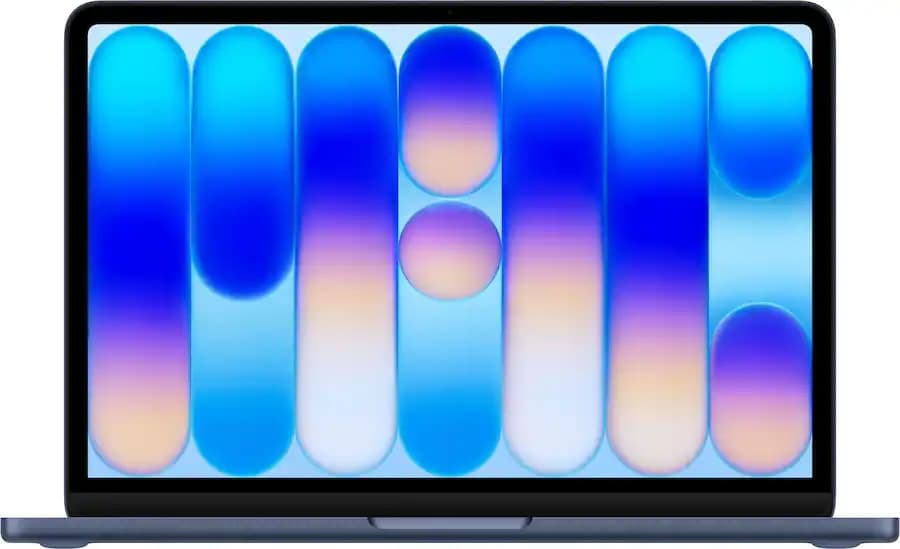
Both platforms run every major piece of editing software. Apple Silicon delivers strong performance-per-watt with a tightly integrated CPU, GPU, and media engine — battery life during export is a genuine advantage — but configurations are fixed at purchase and RAM cannot be added later. Windows laptops offer a wider hardware range, upgrade paths on some models, and more GPU options at the high end. For GPU-heavy 4K work a strong discrete GPU on Windows can outperform Apple Silicon at a comparable price; for quiet operation and battery life in a 1080p workflow, Apple Silicon is hard to match. Neither platform has a categorical editing quality advantage — choose based on budget, upgrade plans, and software preferences.
Is a 4K laptop display necessary?
For most creators, no. A 1440p panel with accurate color coverage serves content editing better than a 4K screen with mediocre color gamut. Pixel density beyond 1440p on a 15- to 16-inch laptop is difficult to perceive at normal working distance, and 4K panels can increase GPU load and reduce battery life. What matters for editing reference is color accuracy — 100% sRGB minimum — and adequate brightness. If a laptop offers 4K at the same price as a 1440p display with better color specs, the color-accurate 1440p panel is typically the more useful editing tool.
The right laptop turns the rest of your creative workflow from a bottleneck into a pipeline that keeps pace with your output. Browse laptops and computer gear at Circuit Supply to find a configuration matched to your editing workload and budget. Building out the rest of the studio at the same time? The camera buying guide and the microphone buying guide cover the next two pieces of the setup. Or head back to the full content creator starter kit to see how every component fits together.