How to Livestream a Church Service: The Equipment List a Volunteer Team Can Actually Run

Most churches end up building a livestream the same way: one more camera added when the last one disappointed, a laptop pressed into service as an encoder (the device or software that compresses the feed so it can be sent online), and a mix that sounds like whatever came out of the room that week. None of this is because anyone did it wrong, there was just never a list to follow. Here is the equipment a small team can actually run every week, in plain terms, and the order to buy it in.
A dedicated stream mix
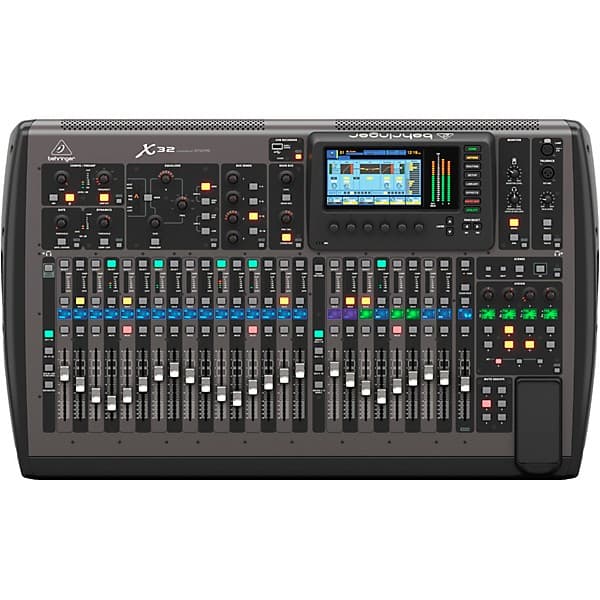
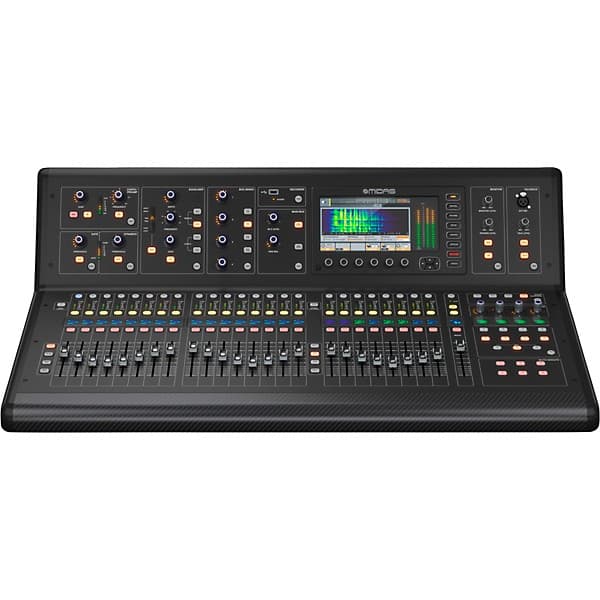
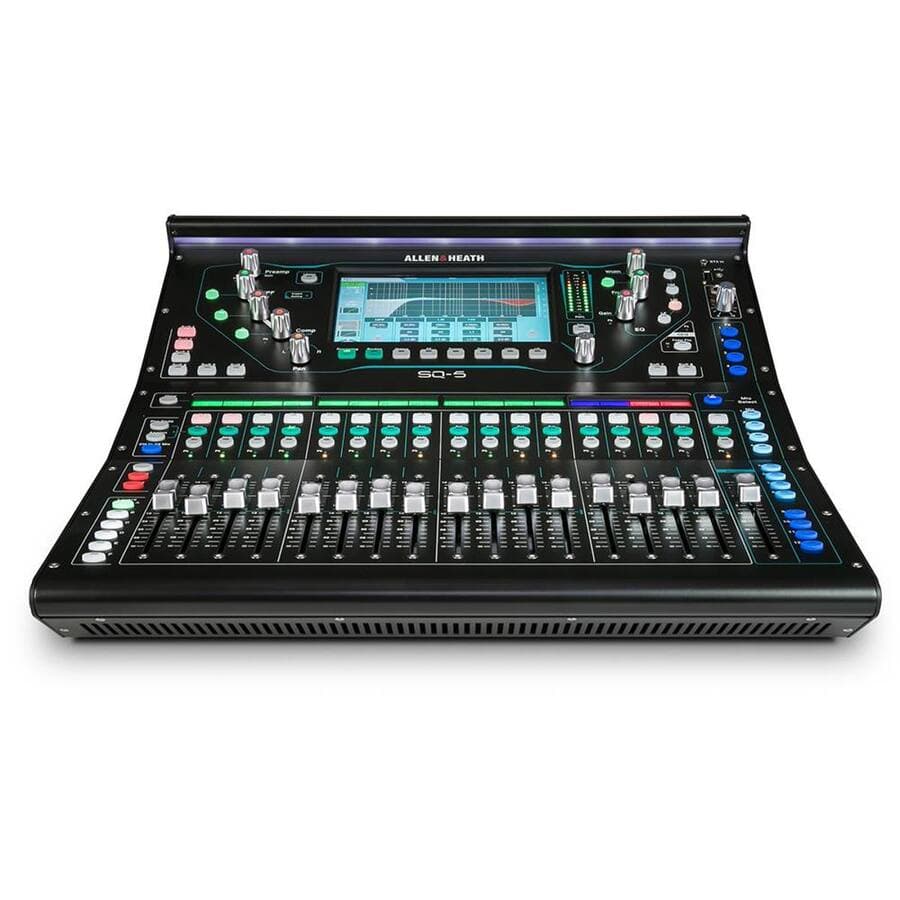
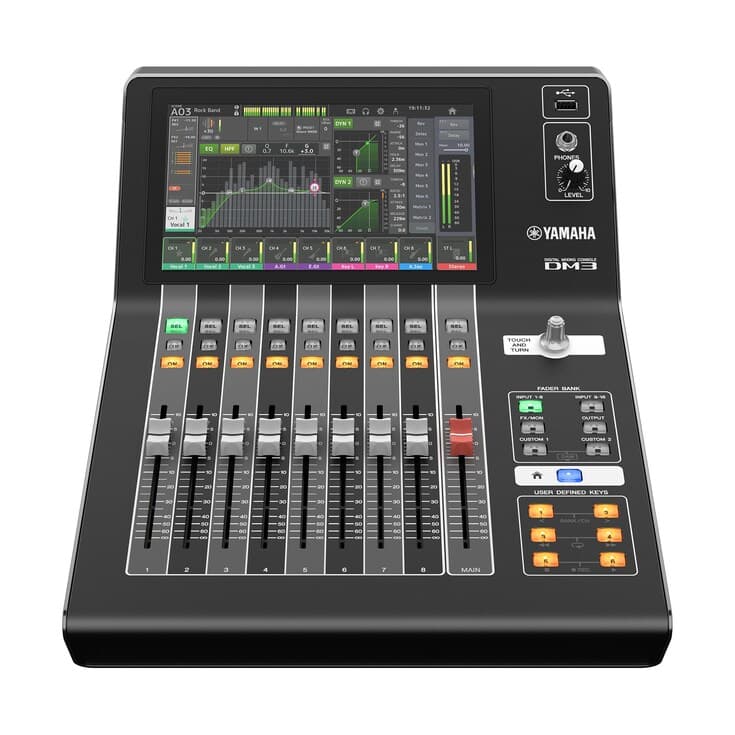
The single biggest jump in stream quality has nothing to do with cameras: it is giving the stream its own audio mix instead of sending the room mix straight to viewers. A mix built for the room leans on the room itself, the natural sound of instruments and a congregation singing, to fill things out. A microphone-only feed sent to a stream is missing all of that, which is why streamed audio often sounds thin or vocal-heavy compared to being there in person. A digital mixing console with a spare bus, a separate set of channel levels you can send somewhere other than the main speakers, lets you build a second mix tuned for headphones and laptop speakers, with every instrument and voice brought up enough to be heard on its own. If your current console does not have a spare bus, this is usually the first upgrade worth making, well before a second camera.
Cameras: one locked-off versus a PTZ
A locked-off camera is set on a wide shot and left alone, framed to cover the whole platform so nobody has to touch it during the service. It is the simplest and most reliable starting point: no operator, no risk of someone bumping the tripod or forgetting to reframe. A PTZ camera (pan-tilt-zoom) can be aimed and zoomed remotely, usually from a small joystick controller or software at the switcher, which lets one volunteer move between a wide shot and a closer shot on the speaker without anyone standing at the camera. PTZ cameras cost more and add a skill the operator has to practice, so the common path is to start with one good locked-off wide shot, confirm the stream is solid, and add a PTZ or a second angle once the basics are working reliably.
Switcher and encoder options
A switcher is the box or software that lets you cut between camera sources and bring in a title screen or lyrics, sending one combined picture onward. An encoder takes that picture and the audio mix and compresses them into the stream your platform actually sends to viewers; some devices do both jobs in one box, others split them. Software options running on a laptop are the cheapest way to start and work fine for a single camera and a light schedule, provided the laptop does nothing else during the service. A dedicated hardware unit costs more but removes the laptop’s processing limits entirely, which matters more as you add cameras, graphics, or a second destination like an overflow room. For a typical small to midsize church, a complete livestream setup, cameras, switcher or encoder, and the cabling to tie it together, tends to land in the $2,500 to $6,000 range, depending on how many cameras and how much of it is hardware versus software.
Wired internet, not Wi-Fi
Whatever device sends your stream out, plug it into the network with an ethernet cable rather than connecting over Wi-Fi. Wi-Fi’s latency, the delay before data actually moves, changes from moment to moment depending on how many other devices are active nearby, including phones in the congregation. A wired connection does not have that competition and sends data at a steady, predictable pace, which is what keeps the picture from stuttering or freezing. This is one of the cheapest fixes available: often just a cable and, if the booth is far from the router, a small network switch to extend the wired connection to where the encoder sits.
A one-page run sheet
A run sheet is a single page listing, in order, everything the stream operator does: power-on sequence, which preset or scene to load, what to check before going live, and what to do if the picture or sound drops. The point is that a rotating team of volunteers, not one irreplaceable expert, can run the stream on any given Sunday. Without a written sheet, the knowledge lives in one person’s head, and the stream becomes unreliable the moment that person is out. Write it once, laminate it, and keep it at the booth; update it whenever the setup changes.
Phasing: what to buy first
Trying to buy everything at once usually means overspending on cameras before the basics are solid. A sensible order looks like this:
- First: a dedicated stream mix and a wired connection. Both are often achievable with equipment you already own, just configured differently, and both fix the most common complaints: thin sound and a laggy or stuttering picture.
- Second: one reliable locked-off camera and a switcher or encoder suited to your team’s skill level. Software on a dedicated laptop is a fine starting point if nothing else runs on that machine during the service.
- Third: the run sheet, written down and tested by someone other than the person who built the system. If a volunteer who has never touched the setup cannot follow it, it needs another pass.
- Fourth: a second camera, a PTZ, or graphics. Add production value only once the core stream is dependable week after week.
Buying in this order keeps each purchase useful on its own, rather than sitting half-finished in a closet.
Frequently asked questions
Do we need a PTZ camera to look professional?
No. A well-framed, well-lit locked-off camera on a wide shot looks clean and professional, and it is far more reliable than a PTZ run by someone still learning the controls. PTZ cameras add flexibility, a closer shot, a cutaway to a reader, but they add it on top of a system that should already be working well. Add one once the single-camera stream has been solid for a while, not instead of getting the basics right.
Can one volunteer run the whole stream alone?
Yes, with the setup described here. One locked-off camera, a stream mix that comes up automatically with a saved preset, and software or a simple hardware encoder are all within reach of a single operator following a one-page run sheet. What is hard for one person is a live camera switch between two angles plus building the audio mix live plus running front-of-house, so keep the roles separated until you have more than one trained volunteer.
Our internet is slow. Does that rule out streaming?
It limits your bitrate (how much data the stream sends out every second), not whether you can stream at all. A lower bitrate produces a lower-resolution picture, which is a reasonable tradeoff for a slow connection, especially compared to a stream that constantly buffers or drops out. Check your actual upload speed, not the download number most plans advertise, and set your encoder’s bitrate comfortably below it.
What is the single most impactful upgrade for a struggling stream?
For most churches, it is the dedicated stream mix, not a new camera. A stream with a thin, room-only audio feed sounds amateur no matter how good the picture is, while a stream with a well-built mix and a modest single camera reads as intentional and well produced. Audio is also usually the cheaper fix, since it often just means reconfiguring a console you already own rather than buying new hardware.
If your stream keeps drifting out of sync once it is running, our companion piece on church livestream audio out of sync walks through the five usual causes. For the room and platform planning that a livestream sits inside, see our worship AV mistakes guide. If you would rather see what a complete plan looks like before buying anything, our sample plan for churches lays out a phased budget end to end, and our page for churches has more on how we work. Whenever you are ready, request a free first conversation and tell us what you are working with. We will help you figure out what to buy first.